> ## Documentation Index
> Fetch the complete documentation index at: https://developers.everhour.com/llms.txt
> Use this file to discover all available pages before exploring further.
# Everhour in Claude
> Connect Everhour to Claude to start timers, log time, check your timesheet, and find tasks by asking in plain language.
Everhour in Claude lets you track time by asking for it. Start a timer, log an hour to yesterday, check what you tracked this week, or find the task you're about to work on — in the same conversation where you're already working, without opening Everhour.
Claude reads and writes your Everhour data as you, so it sees exactly what you'd see in the web app and nothing more.
 ## What you can ask for
* **Your timer** — start one on a task, start one without a task, stop it, or check what's running.
* **Your time** — log time to a task, fix a duration you got wrong, or clear an entry you put in the wrong place.
* **Your timesheet** — this week with daily totals, or any month of raw entries.
* **Your tasks** — search by keyword, see what you tracked recently, open one task in detail, or pin the ones you return to.
* **Your projects, clients, and team** — look up a project, a client, or who's on the team.
* **Team reports** — hours by project or member, project budgets, who's on time off, and weekly capacity, as far as your role allows.
## Set up Everhour in Claude
You need an active Everhour account. There's nothing to set up in Everhour first — no app to create and no key to copy, and nothing to pay: connecting an assistant is included in every Everhour plan at no extra cost.
Add Everhour as a custom connector, sign in when your browser opens, and switch it on in your chat. It works the same in Claude on the web, in the desktop app, and in the mobile apps.
**On a Team or Enterprise plan, only an Owner can add a connector.** If that's not you, you don't need to do the setup — ask your Owner to add Everhour once, then open **Customize → Connectors** and click **Connect**. On Free, Pro, and Max you add it yourself.
The setup, click by click — including what to do if you're not an admin.
One command, then authorize in the browser.
To check it worked, ask *"What's my Everhour timesheet this week?"* A real answer means you're connected.
## Interactive cards
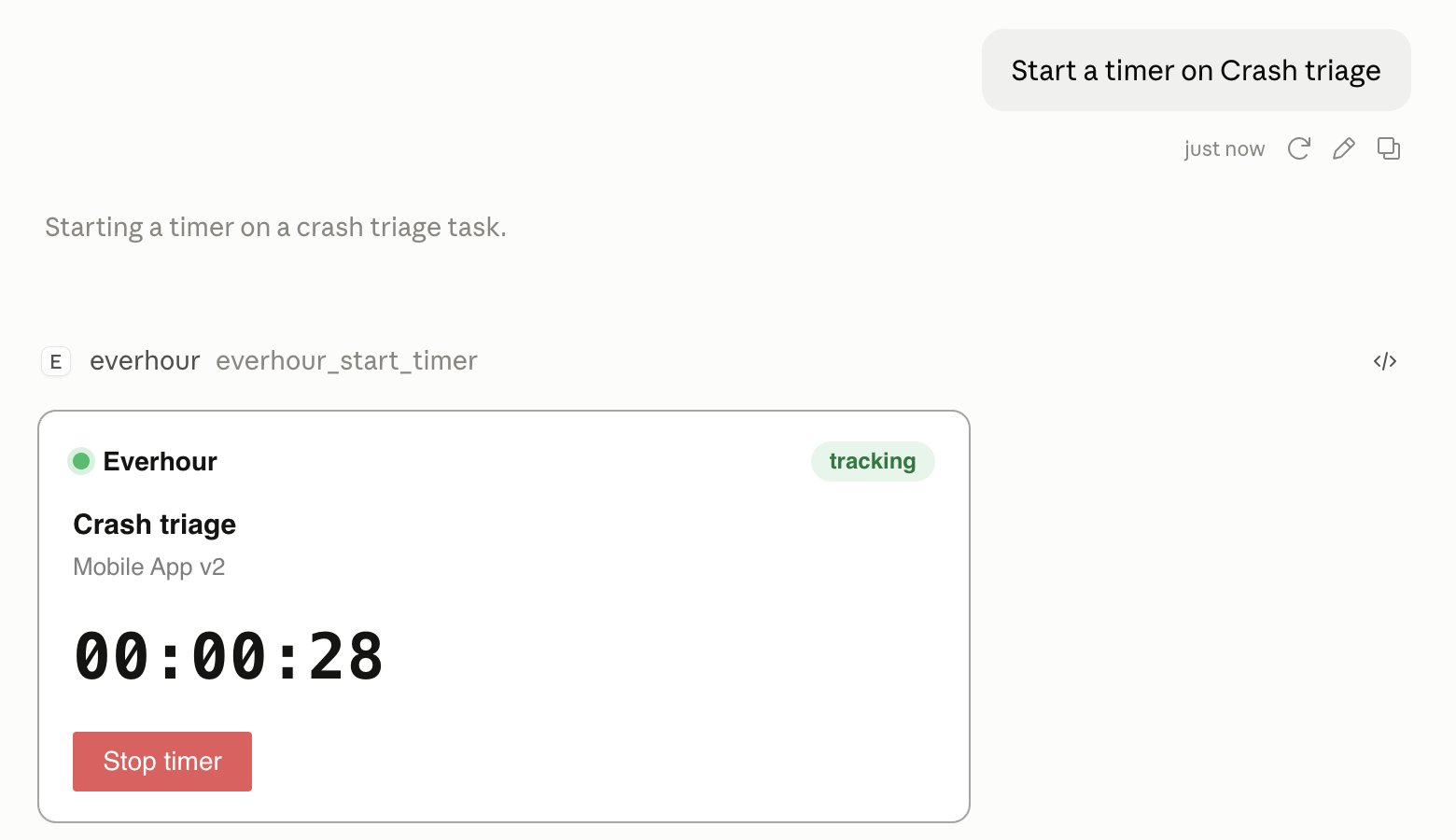
In Claude, some answers come back as a card you can actually use, not just text. Ask about your timer and you get a running clock with a **Stop** button. Ask for your tasks and you get a list where each row starts a timer.
There are four:
* **Timer** — the running task, elapsed time, and a **Stop** button. Appears when you ask what you're tracking, or when you start or stop a timer.
* **Task list** — recent tasks, search results, or your favorites. Every row has a start button and a chevron that opens the full task; rows in the favorites list also carry a star.
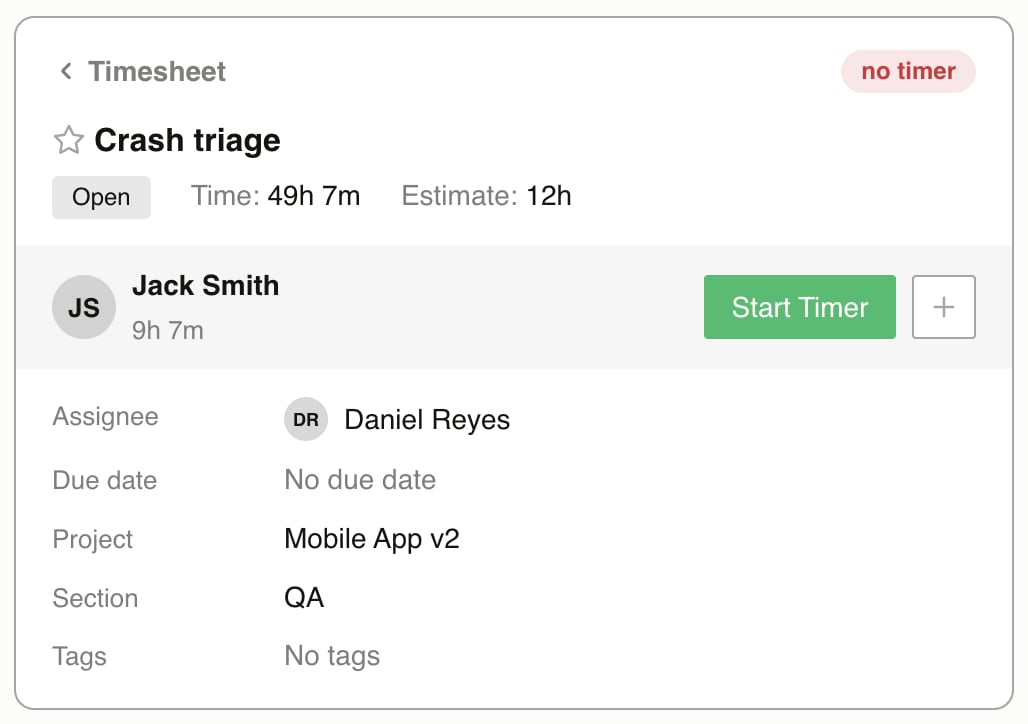
* **Task card** — one task with its project, assignees, estimate, status, tags, and your time on it. You can start the timer, add time, or star it without leaving the card.
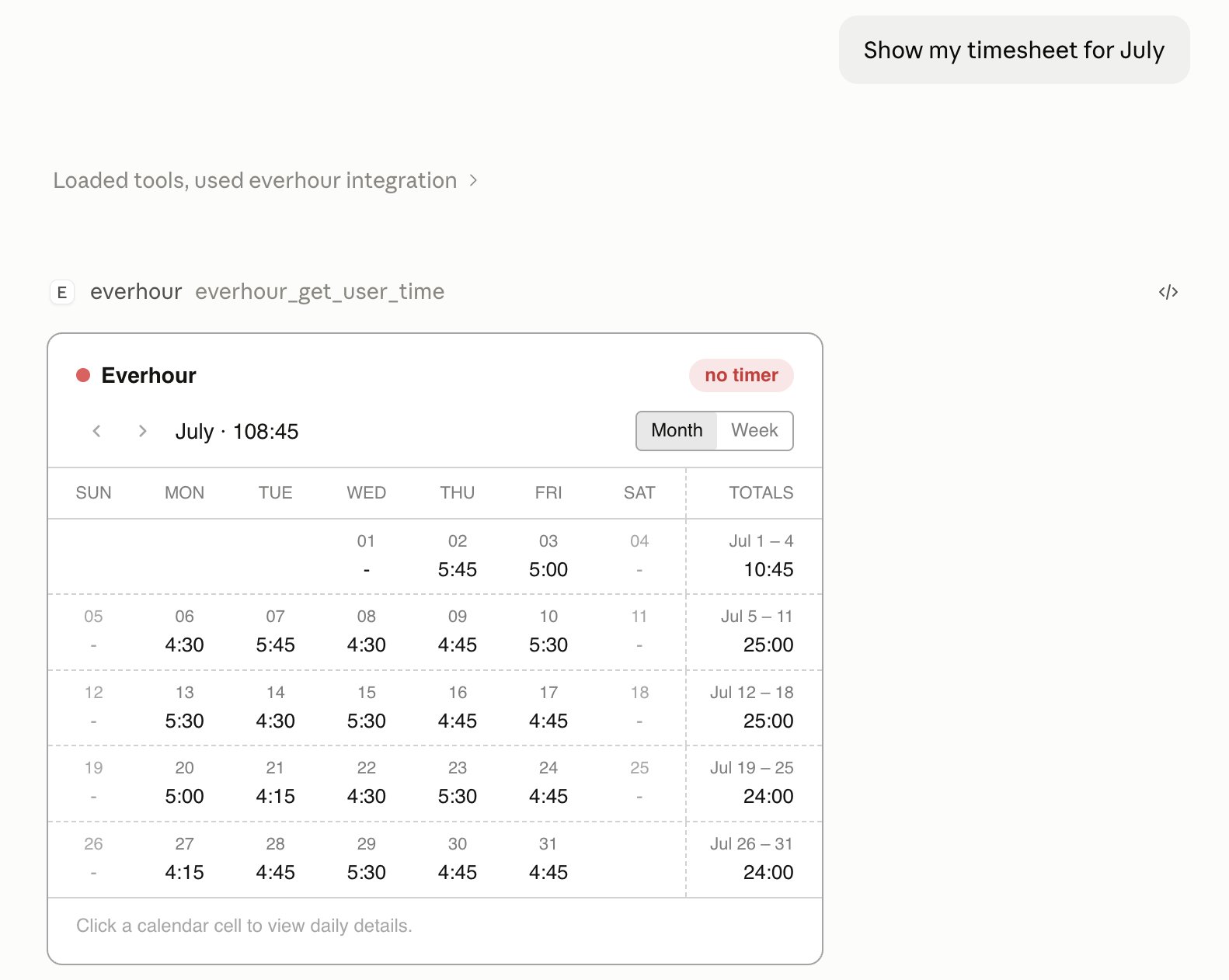
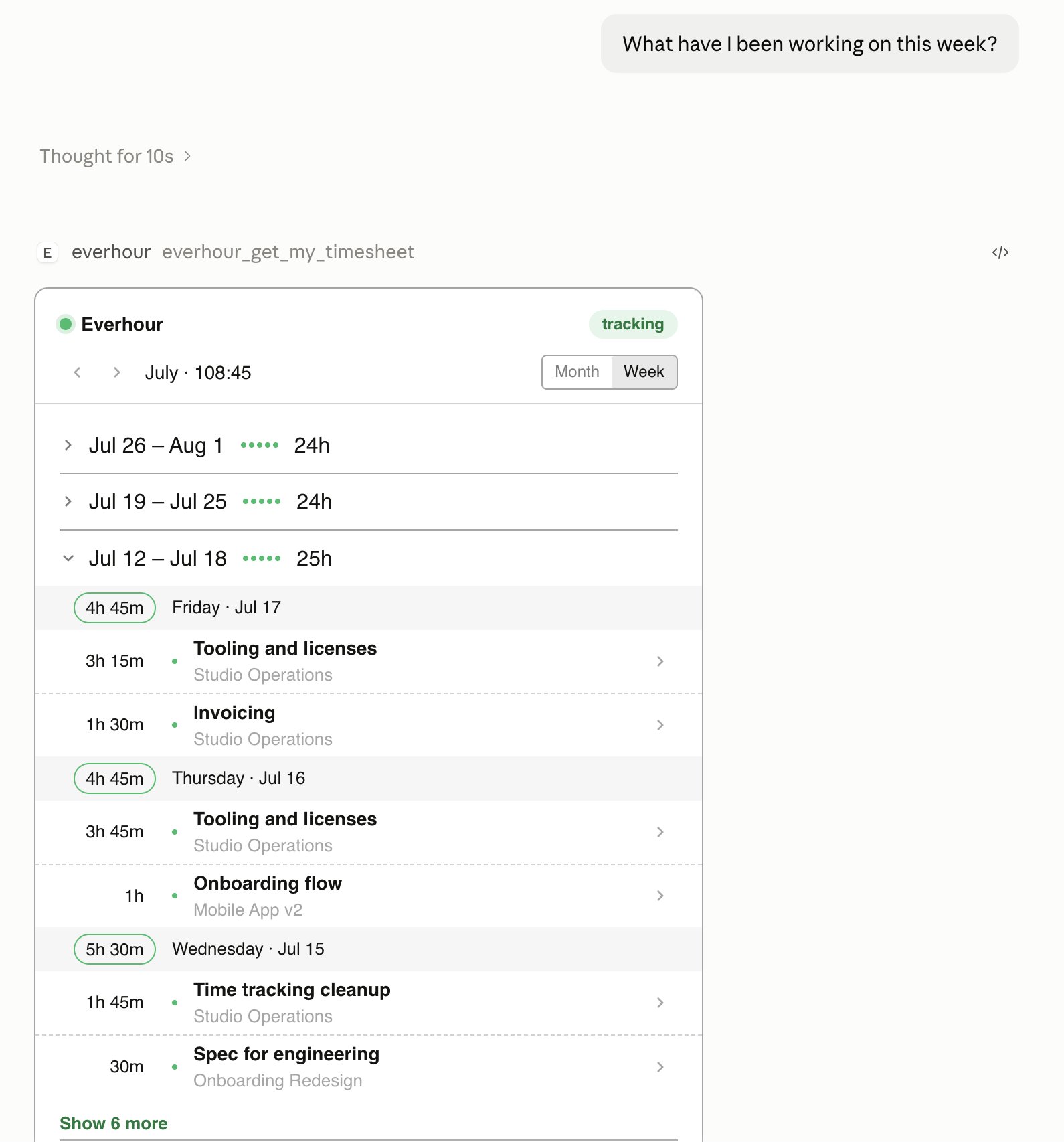
* **Timesheet** — a month grid or a week list, switchable, with daily and weekly totals. In the month grid, click a day to see the entries behind it.
The task card, up close:
## What you can ask for
* **Your timer** — start one on a task, start one without a task, stop it, or check what's running.
* **Your time** — log time to a task, fix a duration you got wrong, or clear an entry you put in the wrong place.
* **Your timesheet** — this week with daily totals, or any month of raw entries.
* **Your tasks** — search by keyword, see what you tracked recently, open one task in detail, or pin the ones you return to.
* **Your projects, clients, and team** — look up a project, a client, or who's on the team.
* **Team reports** — hours by project or member, project budgets, who's on time off, and weekly capacity, as far as your role allows.
## Set up Everhour in Claude
You need an active Everhour account. There's nothing to set up in Everhour first — no app to create and no key to copy, and nothing to pay: connecting an assistant is included in every Everhour plan at no extra cost.
Add Everhour as a custom connector, sign in when your browser opens, and switch it on in your chat. It works the same in Claude on the web, in the desktop app, and in the mobile apps.
**On a Team or Enterprise plan, only an Owner can add a connector.** If that's not you, you don't need to do the setup — ask your Owner to add Everhour once, then open **Customize → Connectors** and click **Connect**. On Free, Pro, and Max you add it yourself.
The setup, click by click — including what to do if you're not an admin.
One command, then authorize in the browser.
To check it worked, ask *"What's my Everhour timesheet this week?"* A real answer means you're connected.
## Interactive cards
In Claude, some answers come back as a card you can actually use, not just text. Ask about your timer and you get a running clock with a **Stop** button. Ask for your tasks and you get a list where each row starts a timer.
There are four:
* **Timer** — the running task, elapsed time, and a **Stop** button. Appears when you ask what you're tracking, or when you start or stop a timer.
* **Task list** — recent tasks, search results, or your favorites. Every row has a start button and a chevron that opens the full task; rows in the favorites list also carry a star.
* **Task card** — one task with its project, assignees, estimate, status, tags, and your time on it. You can start the timer, add time, or star it without leaving the card.
* **Timesheet** — a month grid or a week list, switchable, with daily and weekly totals. In the month grid, click a day to see the entries behind it.
The task card, up close:
 The timesheet card in each of those states:
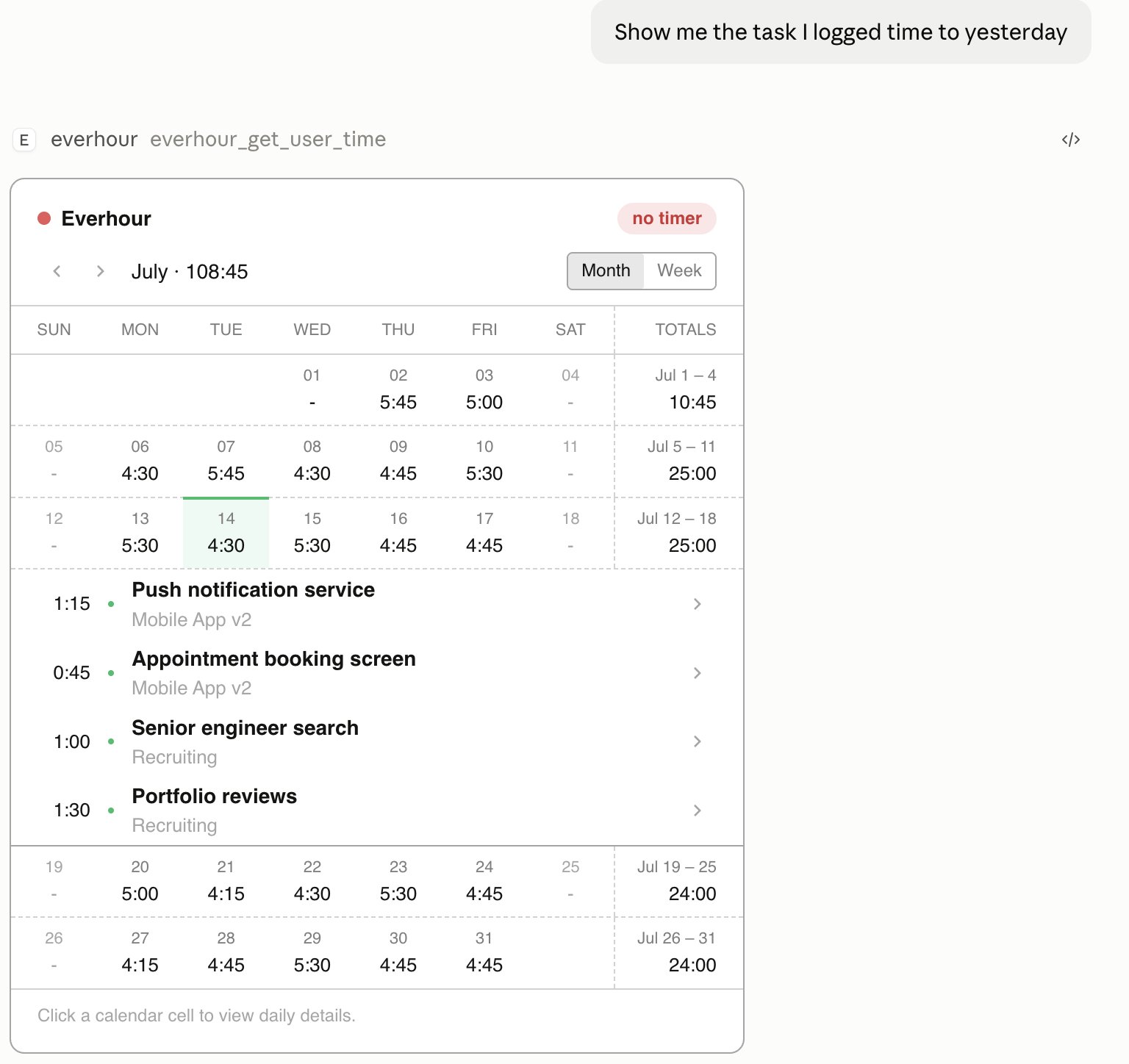 The cards talk to Everhour directly, so a timer you stop in a card is stopped everywhere — the web app, the browser extension, the mobile apps.
Cards appear in the Claude apps that can draw them. Anywhere they can't, the same answer arrives as plain text with nothing left out.
## Example prompts
Phrase things however you like — these are just starting points.
**Tracking right now**
* *"Start a timer on the login bug."*
* *"What am I tracking?"*
* *"Stop my timer."*
* *"Start a timer for the standup — I'm not on a task."*
**Filling in time**
* *"Log 2 hours to the API docs task."*
* *"I forgot to track yesterday — put 3 hours on the checkout redesign for Tuesday."*
* *"Change yesterday's design entry to 90 minutes."*
* *"I logged that to the wrong task, clear it."*
Clearing sets the time to zero rather than deleting the row — the task keeps a 0-hour line on your timesheet. To move the time somewhere else, ask Claude to change the entry to the right task instead of clearing it. [Why it works that way](/mcp-tools#time-records).
**Looking back**
* *"Show my timesheet for this week."*
* *"How much did I track in April?"*
* *"Which project got most of my time last month?"*
**Finding work**
* *"Find tasks about onboarding."*
* *"What have I worked on recently?"*
* *"Track time on this Asana link."* (paste the URL)
* *"Pin the checkout task to my favorites."*
**Reporting on the team**
* *"How many hours did the team log by project last month?"*
* *"Which projects are over budget?"*
* *"Who's out on time off next week?"*
## Permissions and privacy
* **You approve the connection once.** Signing in happens on Everhour, in your browser. Claude never sees your password.
* **Claude acts as you, and only as you.** It can do exactly what your Everhour role allows — a member can't read the team's payroll through Claude any more than through the web app.
* **Claude asks before it changes anything.** The tools that write to your account are marked as such, and Claude prompts you to confirm each time.
* **Everhour doesn't see your conversation.** We receive the details of the actions Claude takes — a task, a duration, a date, a comment, a search term — and nothing else. What you type to Claude stays between you and Claude; it never reaches Everhour.
[Data, privacy, and permissions](/mcp-privacy) covers all of this in full, including how long Claude's access lasts and which links a card can open.
## If something isn't working
Check that Everhour is switched on for this conversation — click **+** at the lower left of the chat box and look under **Connectors**. Connectors are enabled per chat, so one you added earlier may be off in a new conversation.
That's a permissions boundary, not a figure. Cost and billing columns you're not allowed to see come back as `0` — see [Data, privacy, and permissions](/mcp-privacy#what-the-assistant-can-do).
That's the *destructive* hint doing its job — the tools that change your data always prompt. The rest read only and run without asking. [Which ones](/mcp-privacy#actions-that-ask-before-they-run).
If signing in never finishes, Claude lists fewer tools than it should, or the connection needs resetting, see [Troubleshooting](/mcp-connect#troubleshooting). To disconnect Everhour entirely, see [Disconnecting](/mcp-connect#disconnecting).
The cards talk to Everhour directly, so a timer you stop in a card is stopped everywhere — the web app, the browser extension, the mobile apps.
Cards appear in the Claude apps that can draw them. Anywhere they can't, the same answer arrives as plain text with nothing left out.
## Example prompts
Phrase things however you like — these are just starting points.
**Tracking right now**
* *"Start a timer on the login bug."*
* *"What am I tracking?"*
* *"Stop my timer."*
* *"Start a timer for the standup — I'm not on a task."*
**Filling in time**
* *"Log 2 hours to the API docs task."*
* *"I forgot to track yesterday — put 3 hours on the checkout redesign for Tuesday."*
* *"Change yesterday's design entry to 90 minutes."*
* *"I logged that to the wrong task, clear it."*
Clearing sets the time to zero rather than deleting the row — the task keeps a 0-hour line on your timesheet. To move the time somewhere else, ask Claude to change the entry to the right task instead of clearing it. [Why it works that way](/mcp-tools#time-records).
**Looking back**
* *"Show my timesheet for this week."*
* *"How much did I track in April?"*
* *"Which project got most of my time last month?"*
**Finding work**
* *"Find tasks about onboarding."*
* *"What have I worked on recently?"*
* *"Track time on this Asana link."* (paste the URL)
* *"Pin the checkout task to my favorites."*
**Reporting on the team**
* *"How many hours did the team log by project last month?"*
* *"Which projects are over budget?"*
* *"Who's out on time off next week?"*
## Permissions and privacy
* **You approve the connection once.** Signing in happens on Everhour, in your browser. Claude never sees your password.
* **Claude acts as you, and only as you.** It can do exactly what your Everhour role allows — a member can't read the team's payroll through Claude any more than through the web app.
* **Claude asks before it changes anything.** The tools that write to your account are marked as such, and Claude prompts you to confirm each time.
* **Everhour doesn't see your conversation.** We receive the details of the actions Claude takes — a task, a duration, a date, a comment, a search term — and nothing else. What you type to Claude stays between you and Claude; it never reaches Everhour.
[Data, privacy, and permissions](/mcp-privacy) covers all of this in full, including how long Claude's access lasts and which links a card can open.
## If something isn't working
Check that Everhour is switched on for this conversation — click **+** at the lower left of the chat box and look under **Connectors**. Connectors are enabled per chat, so one you added earlier may be off in a new conversation.
That's a permissions boundary, not a figure. Cost and billing columns you're not allowed to see come back as `0` — see [Data, privacy, and permissions](/mcp-privacy#what-the-assistant-can-do).
That's the *destructive* hint doing its job — the tools that change your data always prompt. The rest read only and run without asking. [Which ones](/mcp-privacy#actions-that-ask-before-they-run).
If signing in never finishes, Claude lists fewer tools than it should, or the connection needs resetting, see [Troubleshooting](/mcp-connect#troubleshooting). To disconnect Everhour entirely, see [Disconnecting](/mcp-connect#disconnecting).